- Start up a Single MongoDB Database.
Follow the following steps to run a single server database:
- Create a folder
C:\data\db,
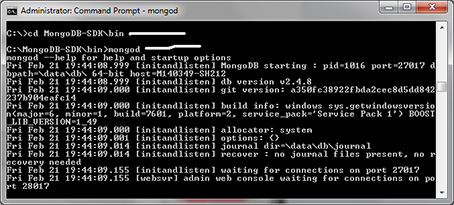
cd into the bin folder of the Mongo DB directory such as C:\MongoDB-SDK\bin to start the NoSQL database server, and
- Enter the command
mongod.
- Create a Java Project.
Select the following options in the Eclipse:
File ⇒ New ⇒ Java Project
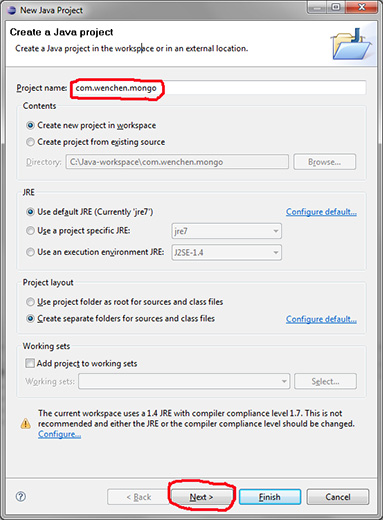
Enter the project name such as com.wenchen.mongo and click the button Next.
- Add the Mongo Java Driver Library.
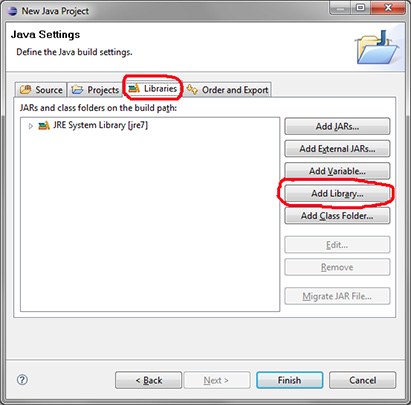
Go to the Libraries tab and click the button Add Libraries:
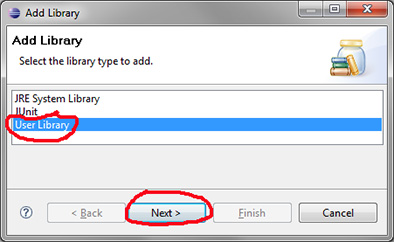
Select the option User Library and click the button Next:
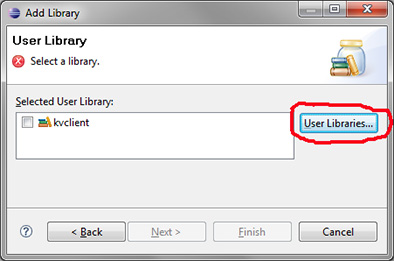
Click the button User Libraries:
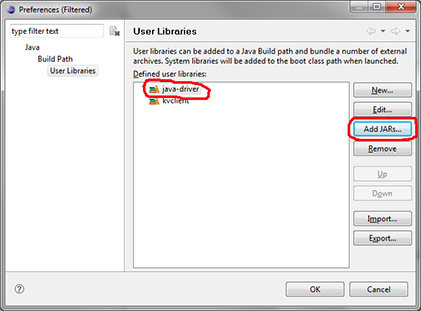
Click the button New, enter a user library name such as java-driver, and click the button Add JARs...:
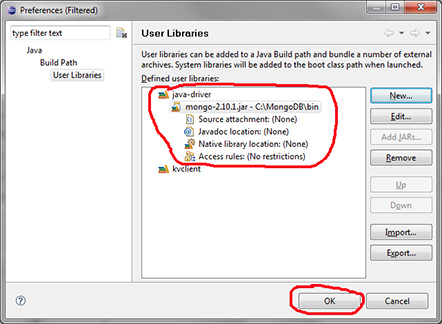
Add the JAR such as C:\MongoDB\bin\mongo-2.10.1.jar and click the button OK:
- Start Developing the Application.
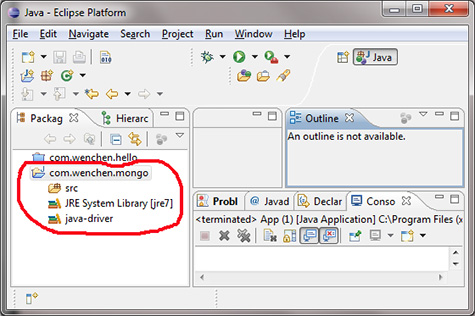
The Eclipse IDE now becomes as follows:
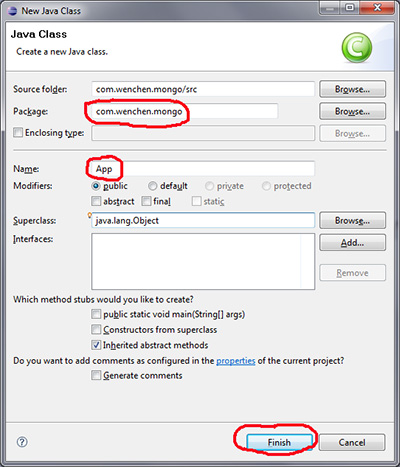
Point to the project in the left pane of Package Explorer, right click the mouse, select the options New and Class, enter the class name such as App, and click the button Finish:
Complete the class such as
|
src/com/wenchen/mongo/App.java
|
package com.wenchen.mongo;

import java.net.UnknownHostException;
import java.util.Date;
import com.mongodb.BasicDBObject;
import com.mongodb.DB;
import com.mongodb.DBCollection;
import com.mongodb.DBCursor;
import com.mongodb.MongoClient;
import com.mongodb.MongoException;

/**
 * Java + MongoDB Hello World Example
 *
 */
public class App {
  public static void main( String[] args ) {
    try {
      /**** Connect to MongoDB ****/
      // Since 2.10.0, uses MongoClient
      MongoClient mongo = new MongoClient( "localhost", 27017 );

      /**** Get database ****/
      // If database doesn't exist, MongoDB will create it for you.
      DB db = mongo.getDB( "testdb" );

      /**** Get collection / table from 'testdb' ****/
      // If collection doesn't exist, MongoDB will create it for you.
      DBCollection table = db.getCollection( "user" );

      /**** Insert ****/
      // Create a document to store key and value.
      BasicDBObject document = new BasicDBObject( );
      document.put( "name", "Pokemon" );
      document.put( "age", 30 );
      document.put( "createdDate", new Date( ) );
      table.insert( document );

      /**** Find and display ****/
      BasicDBObject searchQuery = new BasicDBObject( );
      searchQuery.put( "name", "Pokemon" );

      DBCursor cursor = table.find( searchQuery );

      while ( cursor.hasNext( ) )
        System.out.println( cursor.next( ) );

      /**** Update ****/
      // Search document where name="Pokemon" and update it with new values.
      BasicDBObject query = new BasicDBObject( );
      query.put( "name", "Pokemon" );

      BasicDBObject newDocument = new BasicDBObject( );
      newDocument.put( "name", "Digimon" );

      BasicDBObject updateObj = new BasicDBObject( );
      updateObj.put( "$set", newDocument );

      table.update( query, updateObj );

      /**** Find and display ****/
      BasicDBObject searchQuery2
        = new BasicDBObject( ).append( "name", "Digimon" );

      DBCursor cursor2 = table.find( searchQuery2 );

      while ( cursor2.hasNext( ) )
        System.out.println( cursor2.next( ) );

      /**** Done ****/
      System.out.println( "Done" );
    }
    catch ( UnknownHostException e ) {
      e.printStackTrace( );
    }
    catch ( MongoException e ) {
      e.printStackTrace( );
    }
  }
}
|
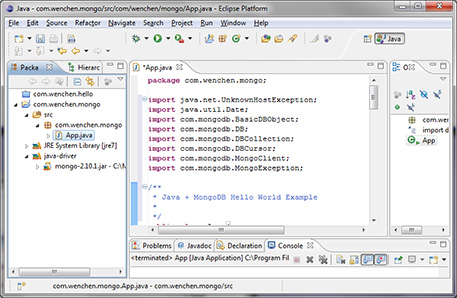
The Eclipse then becomes as follows:
- Build and Run the Project.
Select the following options to build the project:
Project ⇒ Build Project
Select the following options to run the project:
Run ⇒ Run
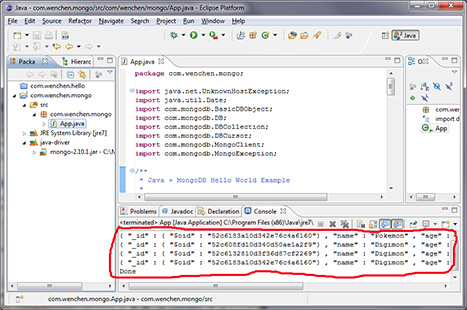
The output is then displayed in the Console tab:
|